
How Do I Resize and Crop Images?
What You’ll Learn
How to resize and crop images directly on your page using the Image Widget.
Why It Matters
Resizing and cropping help your images look their best on the page. You can focus on what matters in the photo and make sure it fits your layout perfectly—without needing a separate photo editor.
Step-by-Step Instructions
Resize and Crop an Image
1. Right-click on the image added with an Image Widget and select Crop.
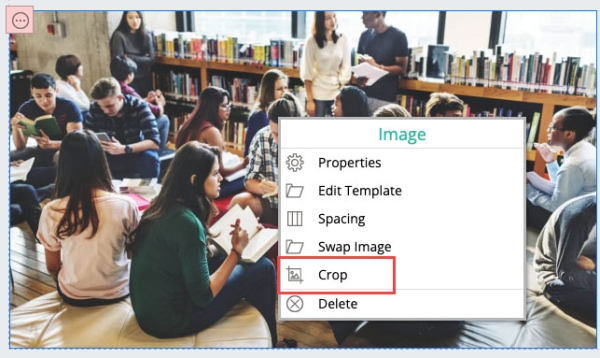
2. The cropping tools will appear around the image. You can:
Zoom in/out by scrolling your mouse or using the slider.

Flip the image horizontally or vertically.

Resize by dragging the edges to make it taller or shorter.

When you’re done, click outside the image to save your changes.
Troubleshooting Tips
- Don't see the Crop option?
This means the image template doesn't support cropping. Try using a different image template or contact support for help.
- Trying to crop an image in a content area?
Only images added with the Image Widget support cropping. This won’t work for images in content blocks or galleries.
- Changes didn’t save?
Be sure to click outside the image after cropping. That’s how your edits are saved.