
How to add a Heading?
What You’ll Learn
How to add headings to a Morweb page using the Subtemplate tool.
Why It Matters
Headings improve content structure, make pages easier to read, and help search engines understand your page hierarchy, boosting accessibility and SEO.
Step-by-Step Instructions
1. Add a Heading Subtemplate
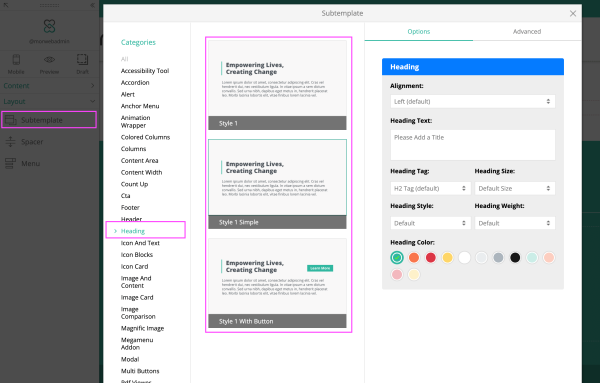
- Drag the Subtemplate tool from the left-side toolbar into the desired section of the page.
- In the pop-up window, select Heading from the Categories list.
- Select the template you would like to use
- On the right, you can add your heading text and adjust the alignment, heading tag (for accessibility purposes), and the heading font size, style, weight, and color.
Troubleshooting Tips
- Subtemplate tool not visible?
Check that you have edit permissions and are in a layout section that supports Subtemplates. If the tool is still missing, contact your site admin or Morweb support.
- Heading not appearing on the page?
Ensure the Subtemplate was successfully dragged into a visible section and that you clicked the green checkmark button after editing.
- Heading formatting incorrect?
Verify that you selected a Heading Subtemplate and not a generic text block. You can adjust heading styles under Properties.